



Can I make a thank you GIF with my own words?
Yes. Every word on the design is editable in Text, so you can add a name, an in-joke or the reason you are grateful before you save it.
Free · made on your device · no watermark
Pick a looping design, write the thanks in your own words, add a photo if you like, and save a GIF that plays anywhere a picture can go.
Free, no account needed
Download one as it is, or personalise it with a name and your own words; it is made on your device in a few seconds.




A thank you GIF is a short, silent animation that loops, so it plays straight away in a message, an email or a comment without anyone pressing play. Here you can make your own instead of picking a stock one: choose a design, type the thanks, add a photo if you want, then press Export video and choose GIF.
Stock GIFs are fun, but thousands of people send the same ones. A GIF with the person’s name, an in-joke or a picture of the cake they baked says you took a minute over it. Everything is made in your browser, so the photo never leaves your device, and there is no account and no watermark across the loop.
Want something sillier? Try a funny thank you GIF. Something softer? The thank you so much GIF designs lean cute and heartfelt.
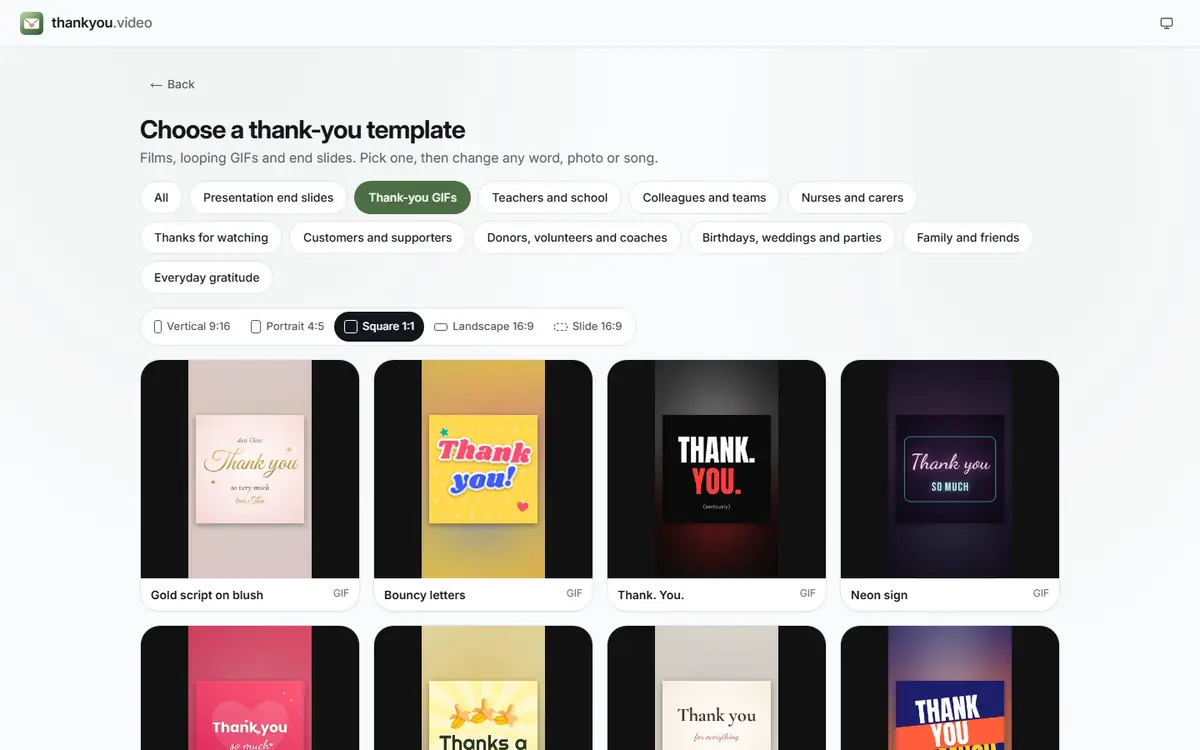
Open the maker and look under Templates for the GIF designs. They open Square 1:1, which suits chats and email; switch Format to Vertical 9:16 for a Story.
 (enlarge image)
Thank-you GIFs open square, ready to export as a looping GIF.
In Text, change the big line (“Thank you!”, “Thanks a million”, “You’re a legend”) and add a short second line with a name or the reason.
Add photos or clips puts a picture from your device into the design: the person, the gift, the finished project. Leave it out for a lettering-only GIF.
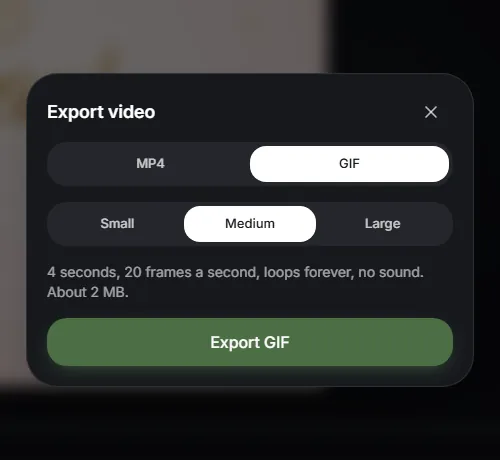
Press Play to watch the loop, then Export video and choose GIF. Press Download video, or Share on a phone to send it straight to a chat.
 (enlarge image)
With GIF chosen the sheet shows the length, frame rate and an estimated file size.
Open one to start; every word, photo and the shape can be changed. All thank-you gifs templates
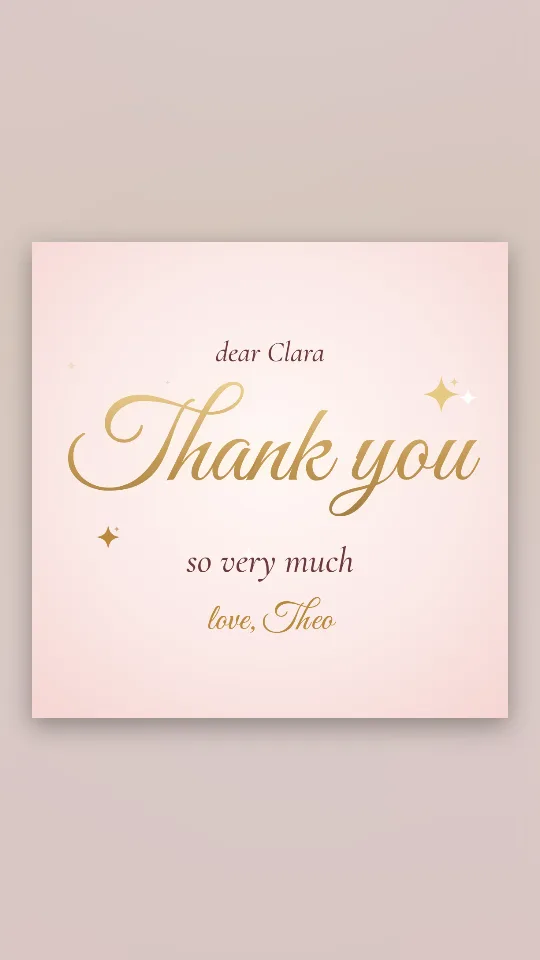
Flowing gold lettering on a blush ground, with a few sparkles catching the light
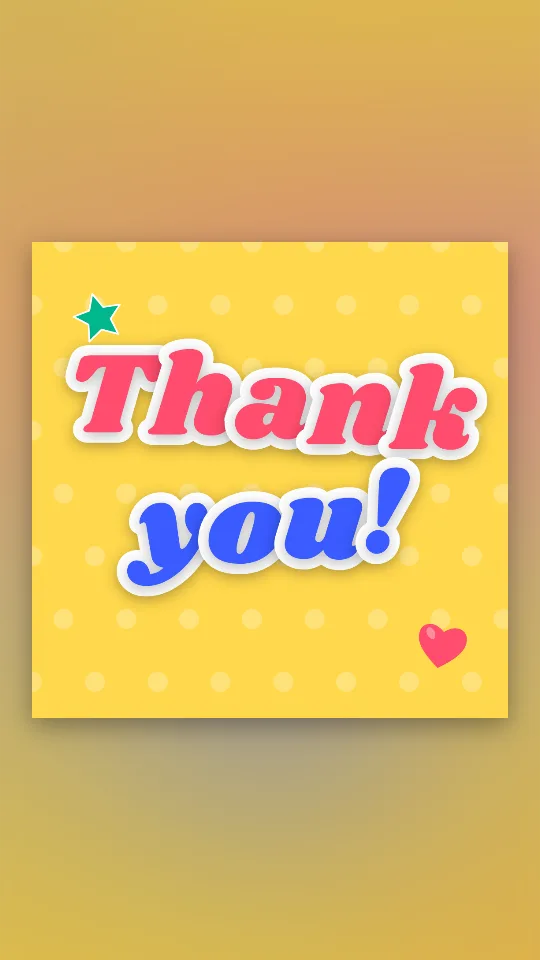
Chunky sticker-style letters that drop in one by one and keep bobbing on sunshine yellow
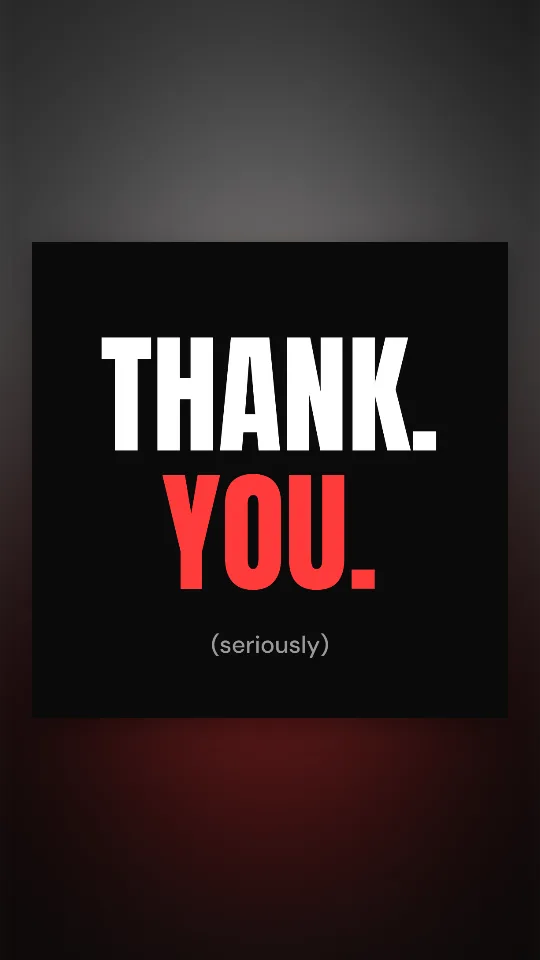
Two huge words slam onto black one at a time, then a small “(seriously)” underneath
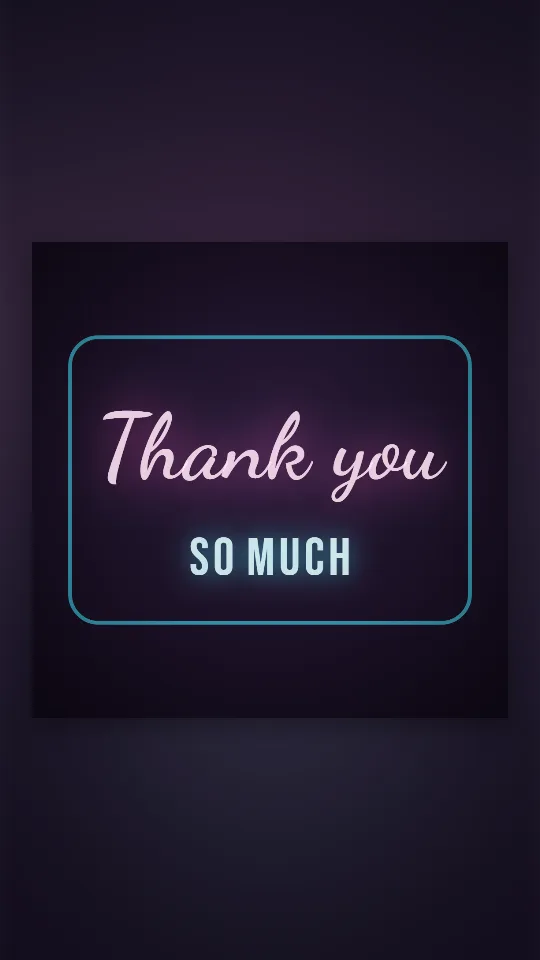
A pink-and-cyan neon sign that buzzes on against a dark wall and hums softly
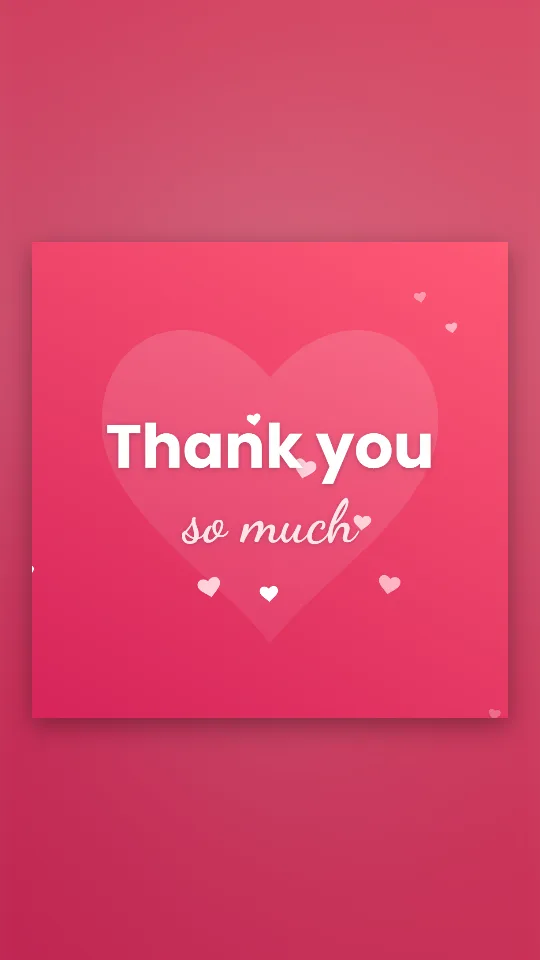
Hearts drift up through raspberry and coral while a big heart beats behind the words
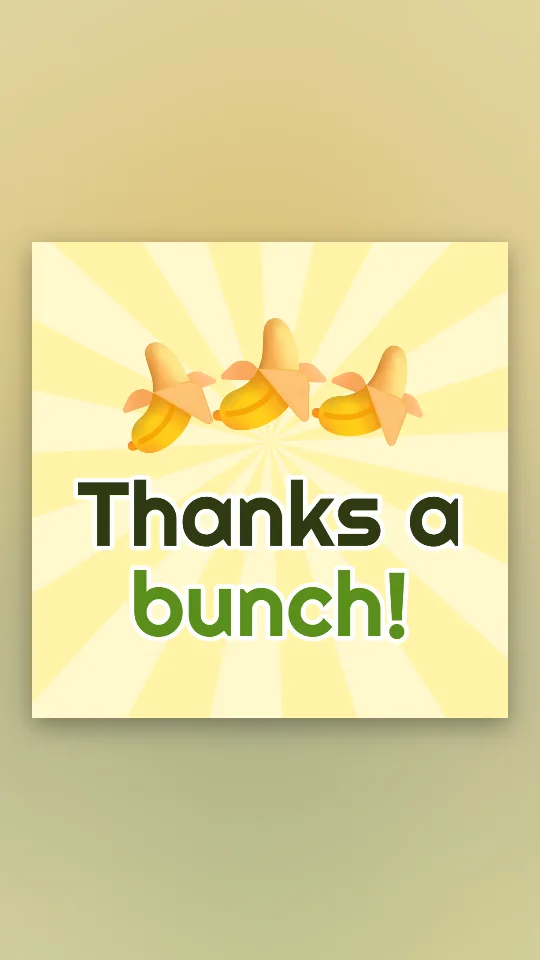
A pun in banana yellow: a wobbling bunch of bananas and a big “Thanks a bunch!”
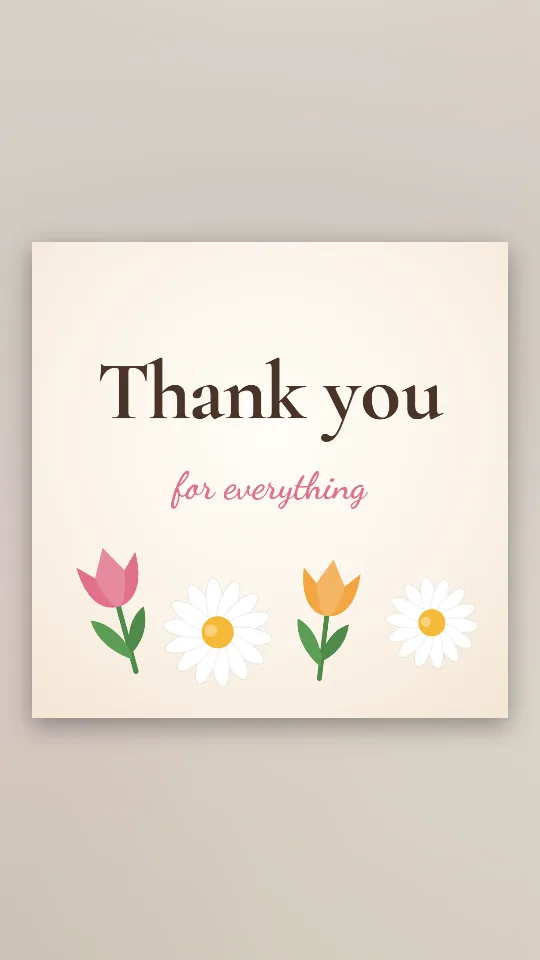
Tulips and daisies spring up around a soft serif thank-you on warm cream
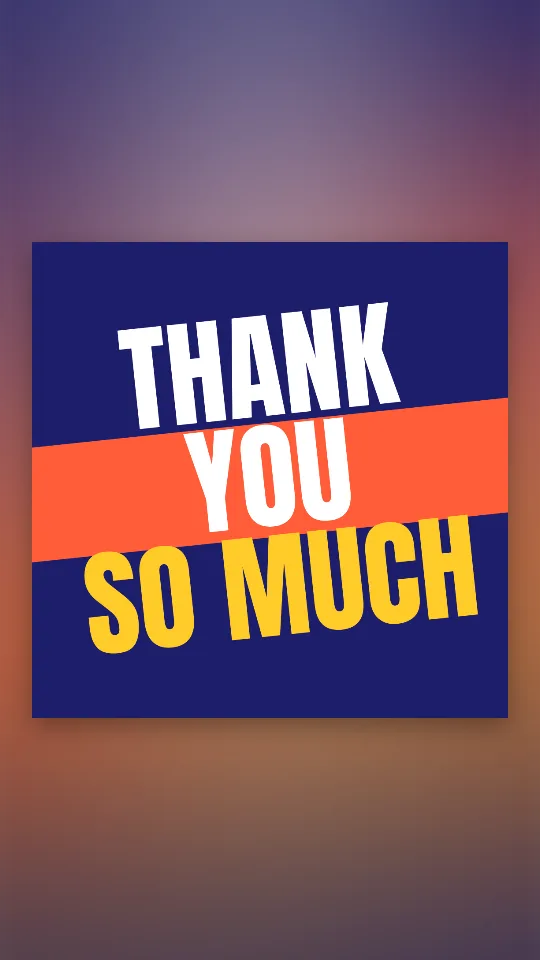
THANK YOU SO MUCH in tall condensed capitals sliding across colour bands
GIFs carry no sound. If the music matters, export an MP4 instead with Export video and MP4; it still plays in every chat app.
GIF is an old format with a limited colour palette, so files grow quickly with long loops and busy photos. A few habits keep yours light enough to send anywhere:
A GIF is read in a second, so aim for a headline of one to four words and, at most, one short line under it: “Thank you! The flowers are gorgeous”, “Thanks, team. Launch day survived”, “You’re the best, neighbour”.
Playful lettering suits friends and close colleagues; a calmer design with a simple “Thank you so much” suits a manager, a client or a relative you don’t see often. For longer wording, borrow a line from the thank you message ideas.
Yes. Every word on the design is editable in Text, so you can add a name, an in-joke or the reason you are grateful before you save it.
Yes. Press Add photos or clips and choose a picture from your device. The photo stays on your device; the GIF is made in your browser.
No, GIFs are always silent. If you want music with your thank-you, export an MP4 instead by choosing MP4 after Export video.
Save the GIF to your phone, open the chat, tap the attach button and choose it from your gallery or files. WhatsApp plays it as a looping image in the conversation.
In most email apps, yes: paste or insert it into the message as an image rather than attaching it as a file. Some older desktop versions of Outlook show only the first frame, so make that frame readable on its own.
Neither. The GIF is free, has no logo on it and needs no account.
Long loops, large shapes and detailed photos all add weight. Shorten the loop, use Square 1:1 and keep backgrounds plain; for anything over a few seconds with photos, an MP4 is usually smaller.