
How long should a thanks for watching clip be?
Five to ten seconds. Long enough to read your name and the next step, short enough that it does not feel like padding.
Free · made on your device · no watermark
Stock “thanks for watching” clips all look the same. Make your own in a minute, with your channel name, your sign-off and your own music.
Free, no account needed
Download one as a PNG for your last slide, or personalise it with your own words and save an MP4 or GIF that moves.




A “thanks for watching” clip is the few seconds at the end of a video that thank the viewer, show who made it and hint at what comes next. Here you make one from a template with your own channel name and sign-off, then export it as an MP4 to add to the end of your edits, or as a GIF for a post or a comment.
Choose an end card design, type “Thanks for watching” or “Thank you for watching” in Text, add your handle and a line such as “new videos every Friday”, and press Export video. Your logo and music stay on your computer while it is made, and there is no watermark on the end of your video.
Hitting a subscriber milestone instead? The thank you followers designs are made for that.
Open Templates and choose a thanks-for-watching design. Use Format Landscape 16:9 for long videos, or Vertical 9:16 for short-form clips.
In Text, set the sign-off line and your channel name or handle. Add a logo or channel picture with Add photos or clips.
Under Music, press Add music and choose the jingle or track you use on the channel, as a file from your device.
Press Play to check it, then Export video: MP4 to edit onto your videos, or GIF for a silent loop. Then Download video.
Open one to start; every word, photo and the shape can be changed. All thanks for watching templates
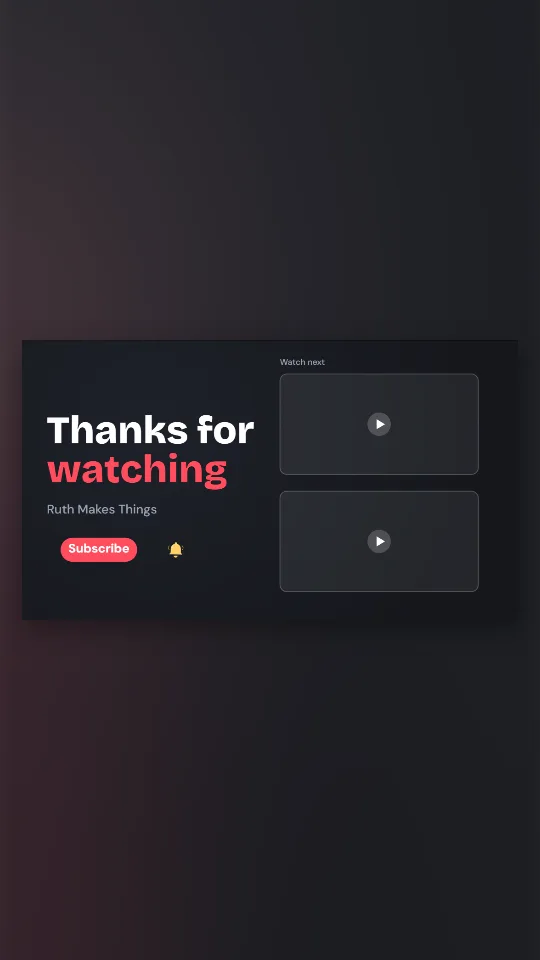
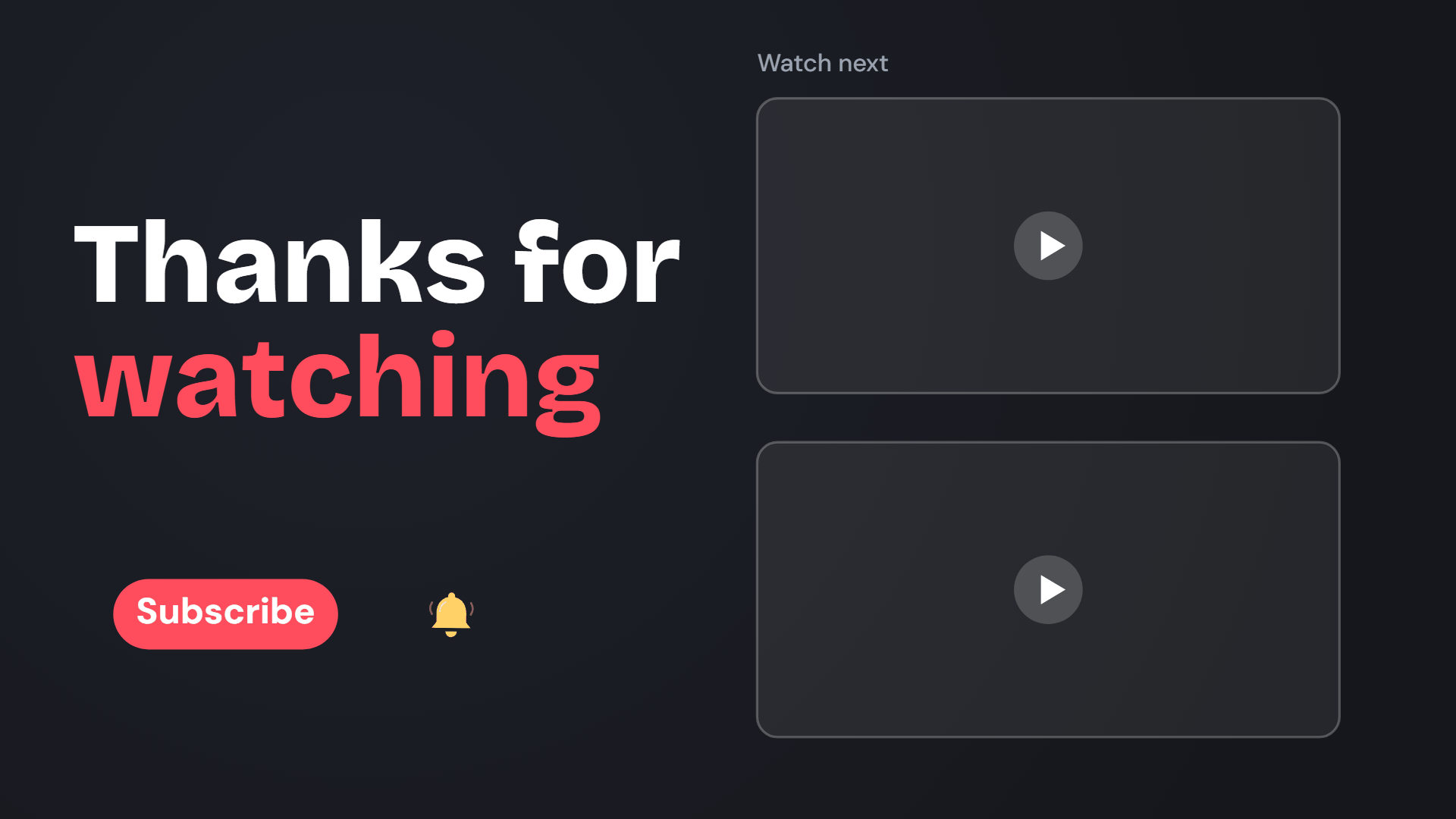
A dark 16:9 end screen with your channel name, a subscribe pill and two frames for your next videos
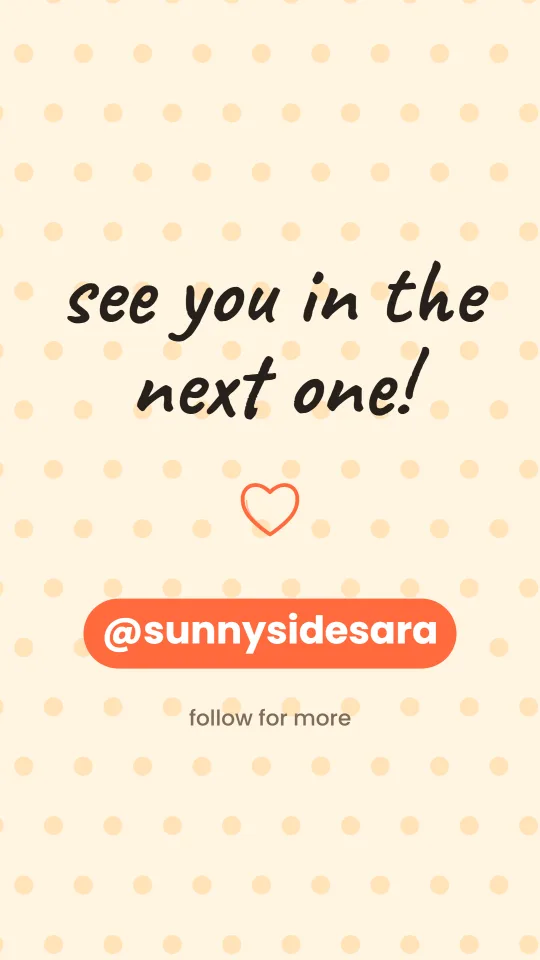
A vertical sign-off for shorts and stories: your clip full-screen, then a cheery handle card
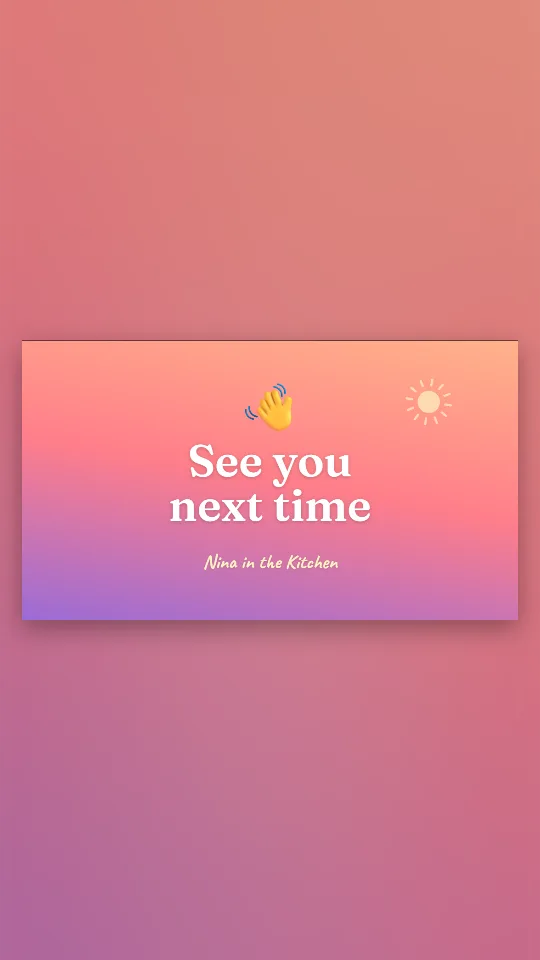
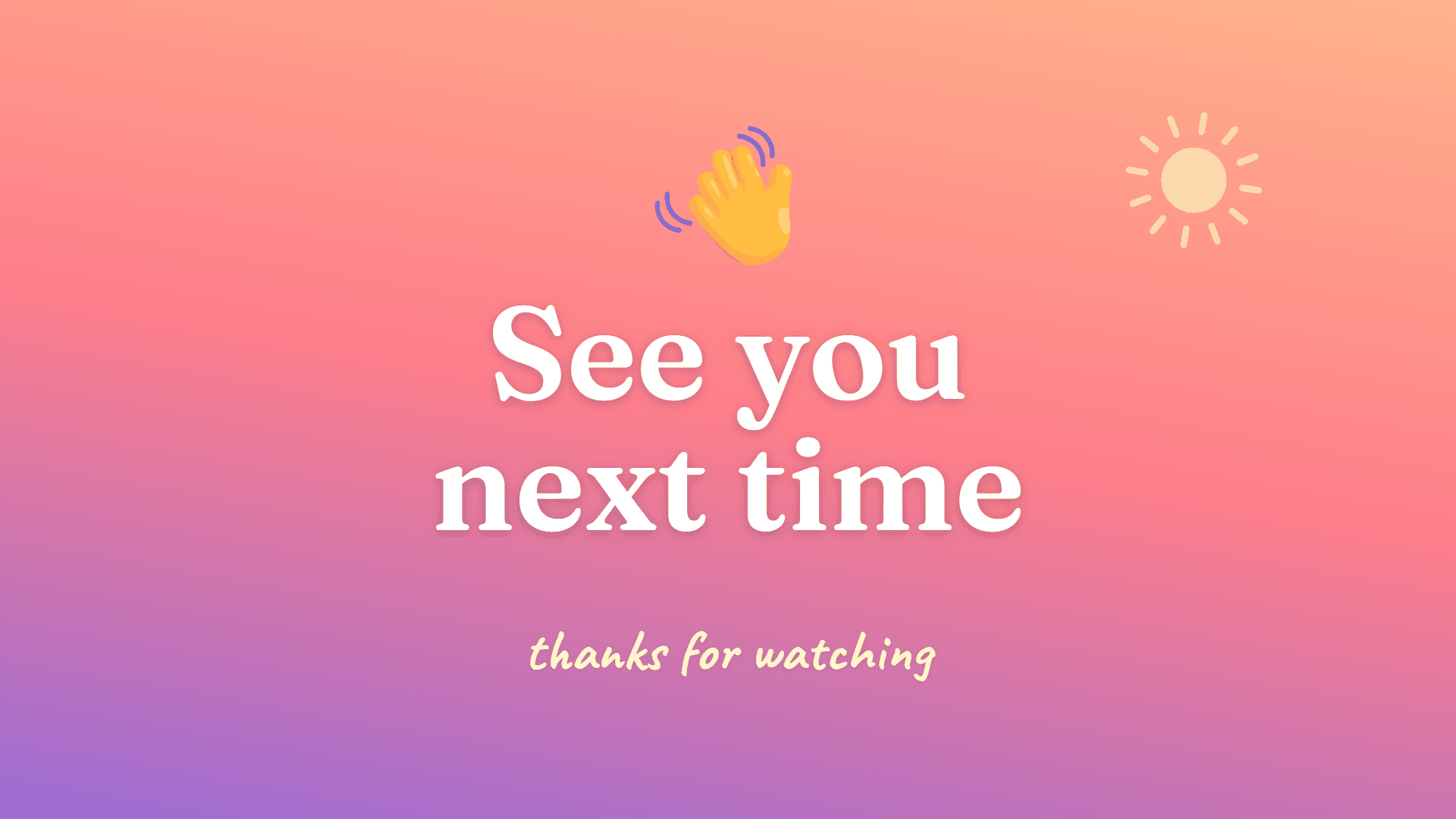
A waving hand and a warm sign-off on a sunset gradient, with your name underneath
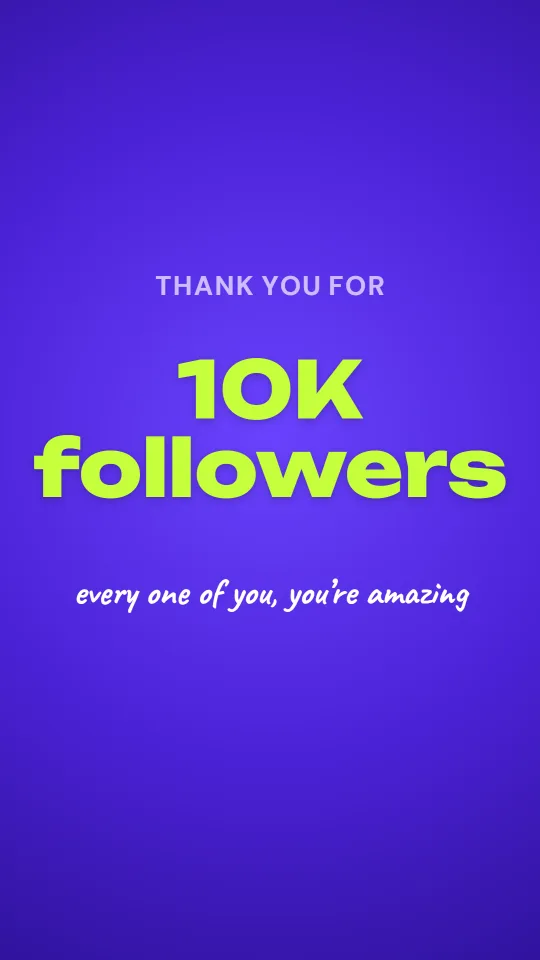
Celebrate a follower or subscriber milestone with a huge number, confetti and your photos
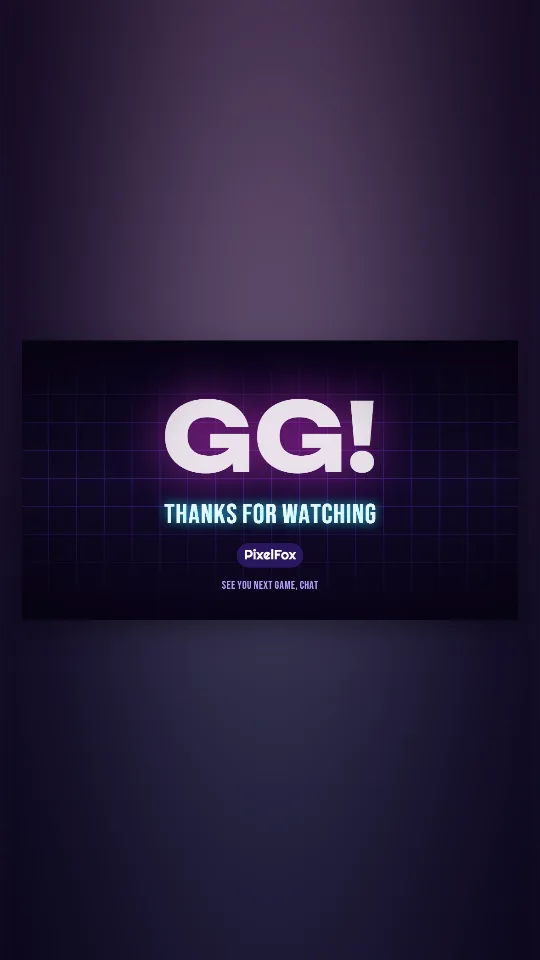
A glowing GG over a drifting synth grid for the end of a stream or gaming video
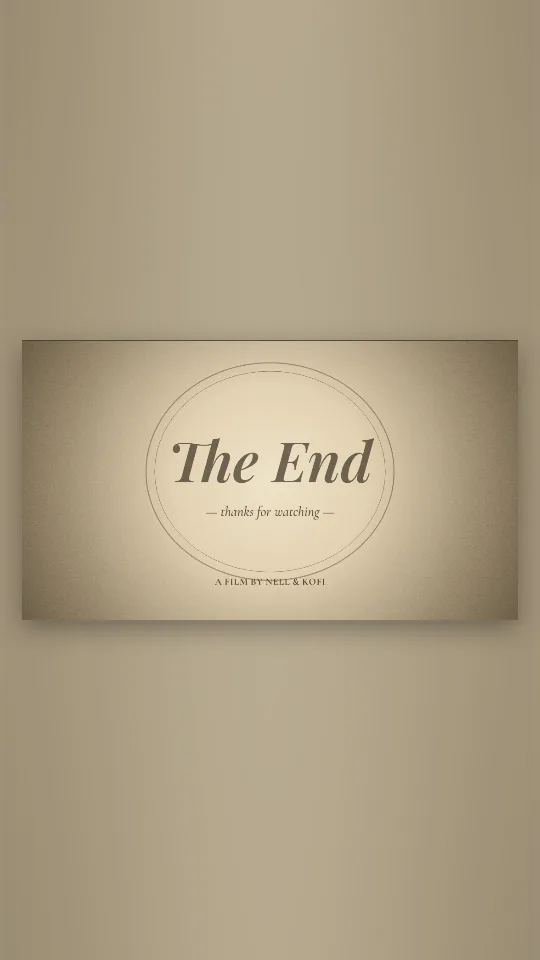
An old-cinema title card: sepia flicker, film grain and a classic italic The End
“Thanks for watching” is relaxed and suits vlogs, gaming and tutorials. “Thank you for watching” is a touch more formal and reads well at the end of a course lesson, a church service stream or a company video. Neither is more correct; match how you speak in the video itself.
A few sign-off lines that work under it:
Put the MP4 on your timeline after the last shot in whatever editing app you use, desktop or phone. Keep it short, five to ten seconds, so viewers who stay are not kept waiting. Many video platforms let you place clickable end-screen elements over the final seconds; leave some calm space in the design if you use them.
For short-form vertical video, keep the words in the middle of the frame. Apps lay their own buttons and captions over the right-hand side and the bottom, which can hide text placed near the edges.
If you are ending a recorded talk or a slide deck rather than a channel video, an end slide is the better fit. The animated thank you slide is the same idea in the shape of a widescreen slide, and the thank you for listening version suits a lecture or a podcast.
Five to ten seconds. Long enough to read your name and the next step, short enough that it does not feel like padding.
Yes. Add a song file from your device under Music. Use music you have the right to use, because platforms may mute or claim tracks you do not own.
Yes. Choose GIF after Export video. GIFs are silent and loop, which suits comments, chats and blog posts.
Yes. Switch Format to Vertical 9:16 and the design fills a phone screen.
No. The clip is yours, free, with no logo of ours on it and no account needed.
Yes. Type “The End” in Text; it works well at the end of a short film, a story or a family video.