


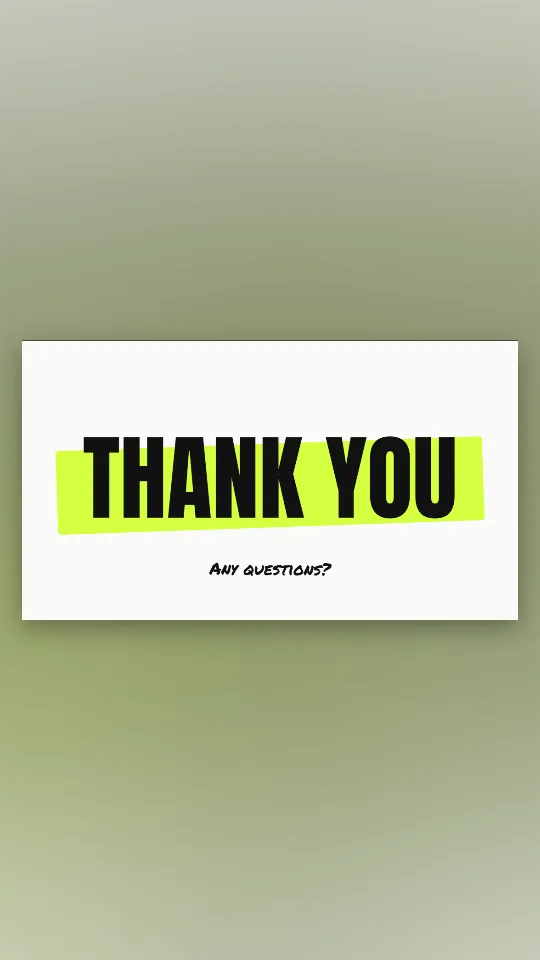




What should be on the last slide of a presentation?
A short thank-you, an invitation to ask questions and, if it helps, one way to reach you. Avoid a new chart or a dense summary on the final slide; it pulls attention away from the conversation.
Free · made on your device · no watermark
Type your closing line, pick a style that suits your deck and save a short moving end slide that plays itself while you take questions.
Free, no account needed
Download one as a PNG for your last slide, or personalise it with your own words and save an MP4 or GIF that moves.




A thank you slide is the last slide of a presentation: a short “Thank you”, often with “Any questions?” and your contact details, that stays on screen while the room claps and the questions start. Here you make it as a few seconds of gentle animation instead of a static picture, then insert the file on the final slide of your deck.
Choose a presentation template, change the words, keep the Slide 16:9 shape and press Export video. You get an MP4 that PowerPoint, Keynote and Google Slides accept, a silent looping GIF, or a PNG still for decks that must not move. It is all made in your browser, so a company logo or an unreleased product name never leaves your laptop.
Most thank you slide searches end at a gallery of flat images. If you want the moving version but would rather build it inside PowerPoint itself, the guide to animating a thank you slide in PowerPoint shows the built-in way first.
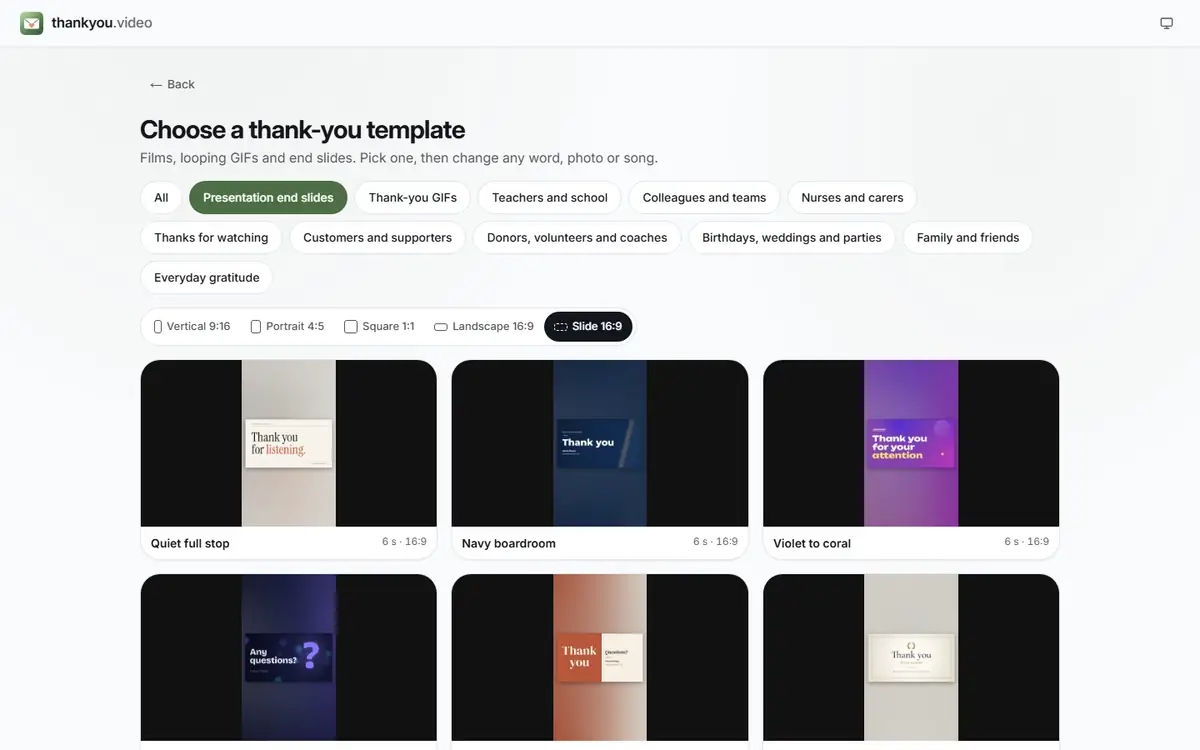
Open Templates and choose one of the end slide designs. Format starts on Slide 16:9, the same 16:9 shape as a standard slide.
 (enlarge image)
Presentation end slides, opened in the Slide 16:9 shape.
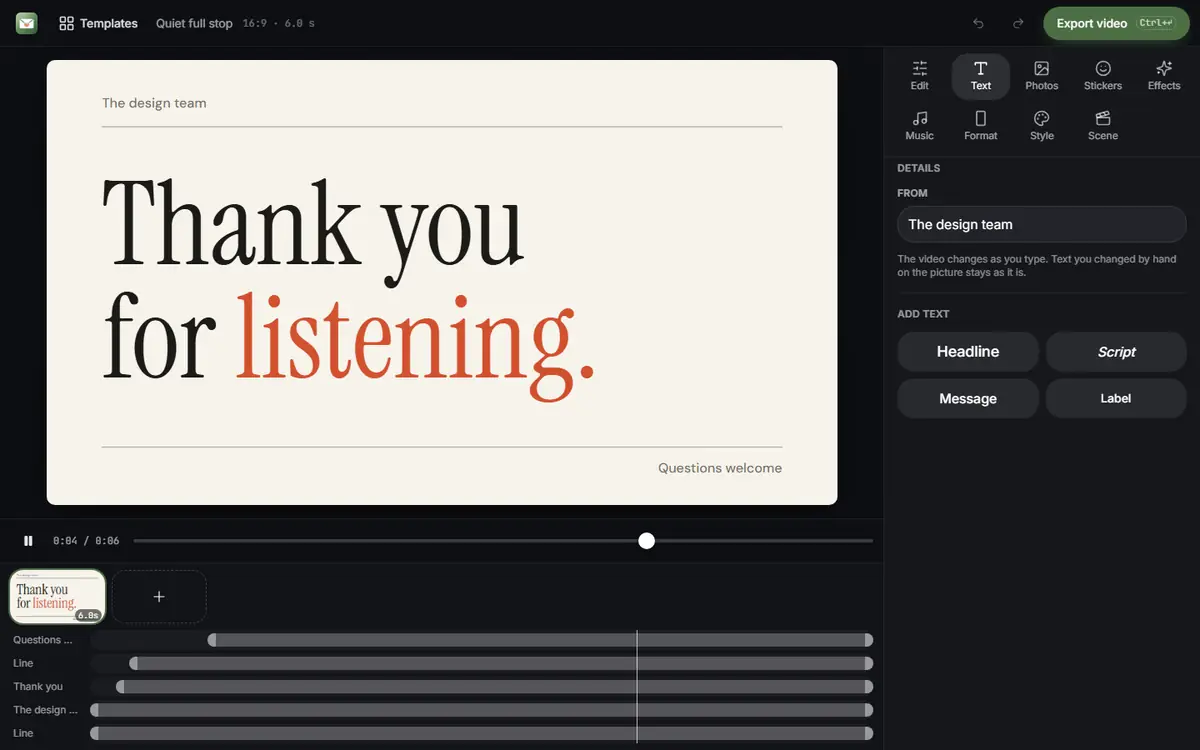
In Text, type “Thank you”, “Thank you, any questions?” or your own line, plus a name, a team or an email address if you want one on screen.
 (enlarge image)
An end slide in the editor: type your sign-off under Text; the slide lasts about six seconds and loops.
Add photos or clips brings in a logo or a product shot from your device. A PNG with a transparent background usually sits most neatly.
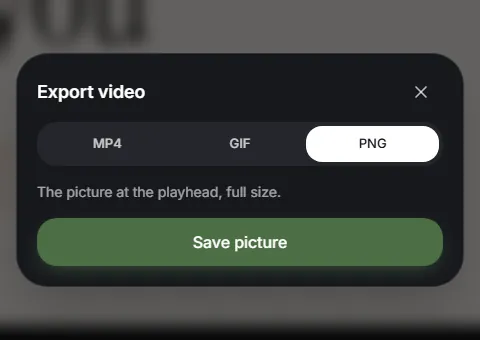
Press Play to check the timing, then Export video and choose MP4 for a video, GIF for a silent loop or PNG for a still. Then Download video.
 (enlarge image)
Press Export video and choose MP4, GIF or, for a slide, PNG.
Insert the file on the final slide and stretch it to fill the frame. The section below has the exact menus for PowerPoint, Google Slides and Keynote.
Open one to start; every word, photo and the shape can be changed. All presentation end slides templates
A crisp navy end slide with a brass rule and room for your name and email
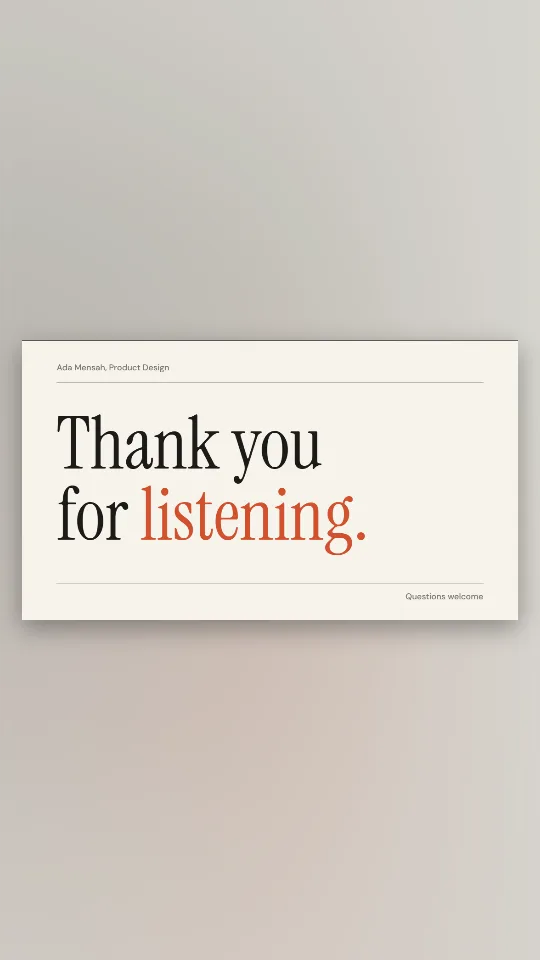
Off-white and ink with an editorial serif: thank you for listening, nothing more
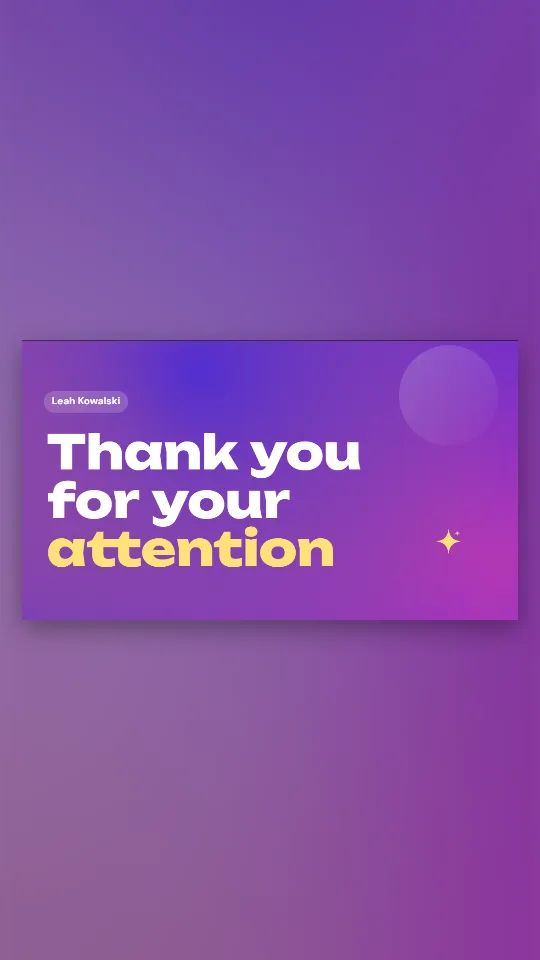
A drifting violet-to-coral gradient with heavy rounded type for thank you for your attention
Deep indigo with a glowing question mark and soft bokeh, made for the Q&A
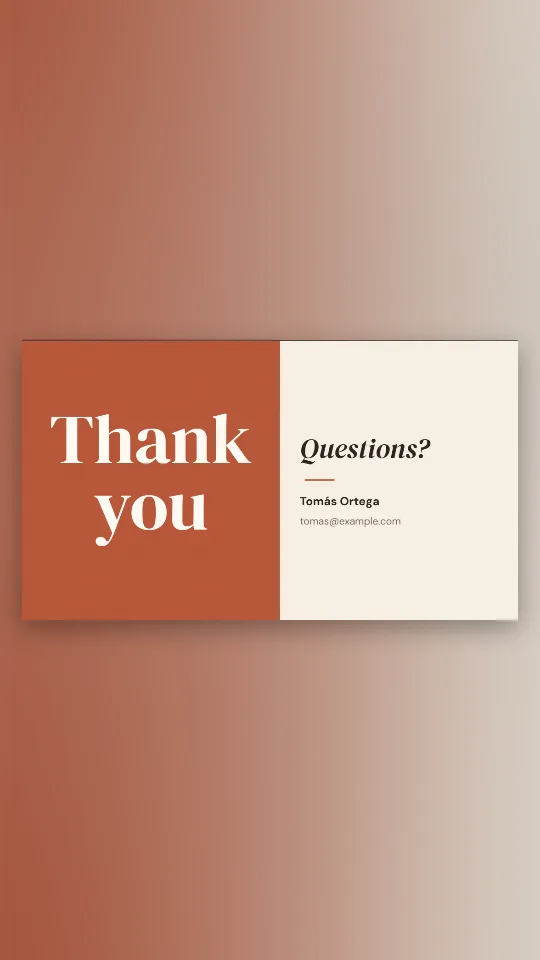
Half terracotta, half cream: thank you on one side, questions and your details on the other
Cream paper, a laurel and a classic serif for a thesis defence, lecture or conference talk
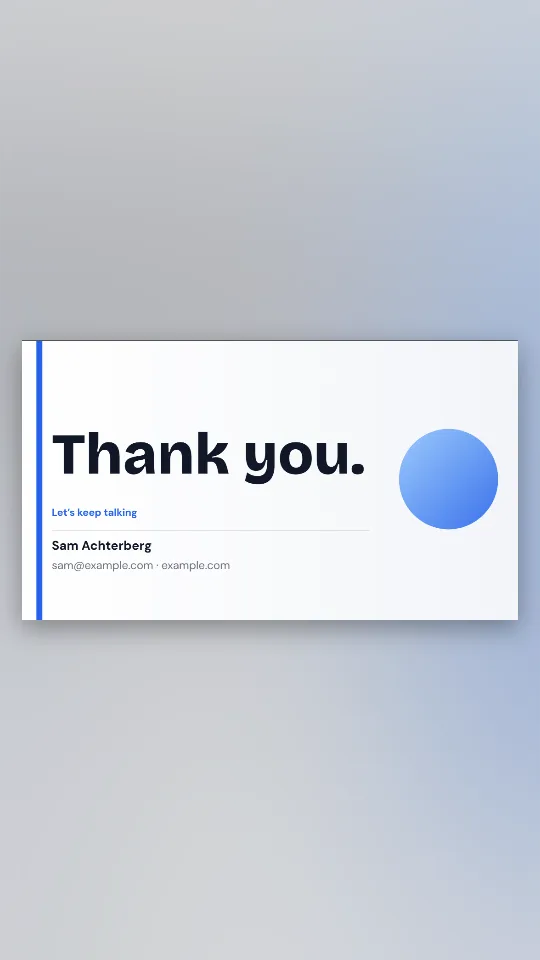
A clean white closing slide with your name, email or website and a big thank you
Huge condensed capitals with a neon highlighter stroke swiping in behind them
A GIF goes in through Insert > Pictures instead; it loops on its own and needs no playback settings.
Slides takes videos from Google Drive or YouTube rather than from your computer, so upload the MP4 to Drive and use Insert > Video. A GIF is simpler: Insert > Image > Upload from computer, and it animates in present mode.
Drag the MP4 or GIF from Finder onto the last slide and resize it to fill the frame. In the movie settings, choose to start it automatically and to loop it.
A live room rarely needs music on the closing slide: a laptop suddenly playing a song mid-applause is more distracting than charming.
Two lines at most. People read the end slide while you are still talking, so it should support you, not compete with you. Some patterns that work:
Wrapping up with a softer line instead? The thank you for listening slide and the thank you for your attention slide have their own designs and wording ideas.
A short thank-you, an invitation to ask questions and, if it helps, one way to reach you. Avoid a new chart or a dense summary on the final slide; it pulls attention away from the conversation.
The Slide 16:9 shape matches the default widescreen slide in PowerPoint, Google Slides and Keynote, so it fills the frame with no black bars.
A few seconds, designed to end on a calm still frame or to loop cleanly. That suits applause and questions: it moves when the slide appears, then settles.
Yes. Insert it like any picture and it loops by itself in Slide Show. It has no sound, which many presenters prefer for a live talk.
Yes. A GIF uploads straight from your computer as an image. An MP4 needs to be in your Google Drive first, then inserted from there.
Yes. Add the logo with Add photos or clips. The file stays on your device, which matters for unreleased branding or client names.
Yes. No account, no fee and no watermark on the slide, whether it is for a lesson, a client pitch or a conference keynote.