




How do I make text appear automatically in PowerPoint?
Apply an entrance effect on the Animations tab, then set Start to After Previous or With Previous. It then plays when the slide appears, with no click.
Guide · with a free thank-you video maker
The built-in way with PowerPoint’s own entrance effects, the equivalents in Google Slides and Keynote, and a quicker route with a ready-made clip.
Free, no account needed
To animate a thank you slide in PowerPoint, type your “Thank you” in a text box on the last slide, select it, choose an entrance effect such as Fade or Zoom on the Animations tab, and set it to start After Previous so it plays without a click. That takes about two minutes and needs nothing beyond PowerPoint.
If you want something richer, such as layered movement, a logo reveal or a loop that keeps going during questions, it is quicker to make a short clip and insert it. The animated thank you slide maker does that in the browser and gives you an MP4 or GIF to drop in.
On your final slide, choose Insert > Text Box (or Insert > WordArt for a styled heading) and type “Thank you”. Add a second, smaller text box for “Questions?” or your contact details.
Select the “Thank you” text box, open the Animations tab and choose an entrance effect. Fade, Zoom and Float In look calm; avoid the bouncier ones for a serious audience.
In the Start box on the Animations tab, choose After Previous (or With Previous). Set a Duration of about one second.
Animate the smaller text box too, start it After Previous and add a short Delay, so it arrives just after the main line. Open the Animation Pane to see and reorder both.
Press Slide Show > From Current Slide to check the timing. Adjust Duration and Delay until it feels unhurried.
Open one to start; every word, photo and the shape can be changed. All presentation end slides templates
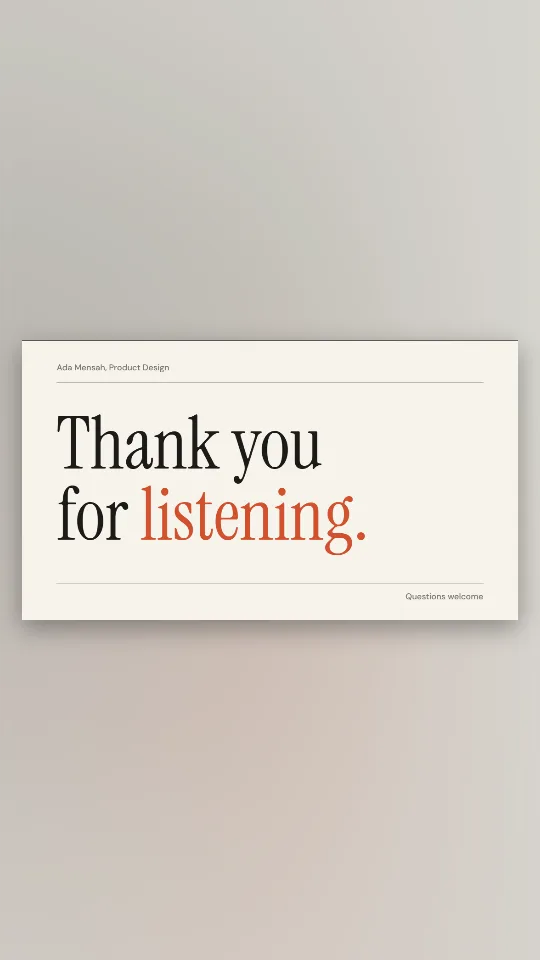
Off-white and ink with an editorial serif: thank you for listening, nothing more
A crisp navy end slide with a brass rule and room for your name and email
A drifting violet-to-coral gradient with heavy rounded type for thank you for your attention
Deep indigo with a glowing question mark and soft bokeh, made for the Q&A
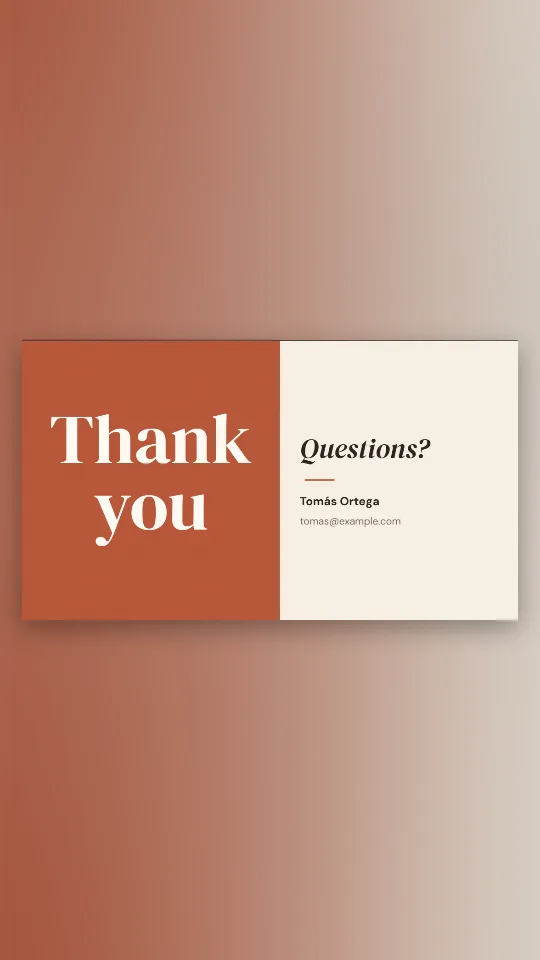
Half terracotta, half cream: thank you on one side, questions and your details on the other
Cream paper, a laurel and a classic serif for a thesis defence, lecture or conference talk
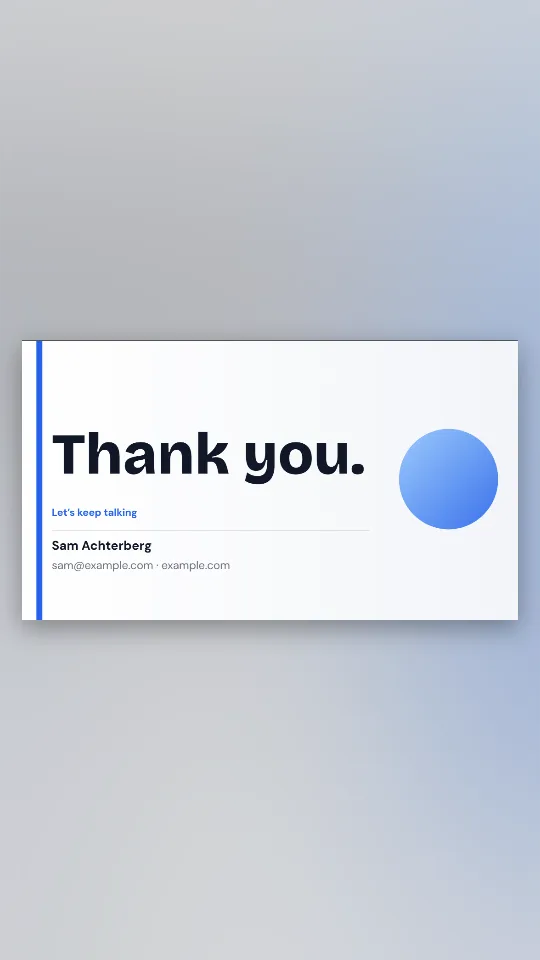
A clean white closing slide with your name, email or website and a big thank you
Huge condensed capitals with a neon highlighter stroke swiping in behind them
Select the text box and choose Insert > Animation. The Motion panel opens; pick an effect such as Fade in, set it to After previous and adjust the speed. The choice of effects is smaller than PowerPoint’s.
Select the text, open the Animate sidebar and click Build In > Add an Effect. Dissolve and Move In are understated; set the build to start automatically after the slide appears.
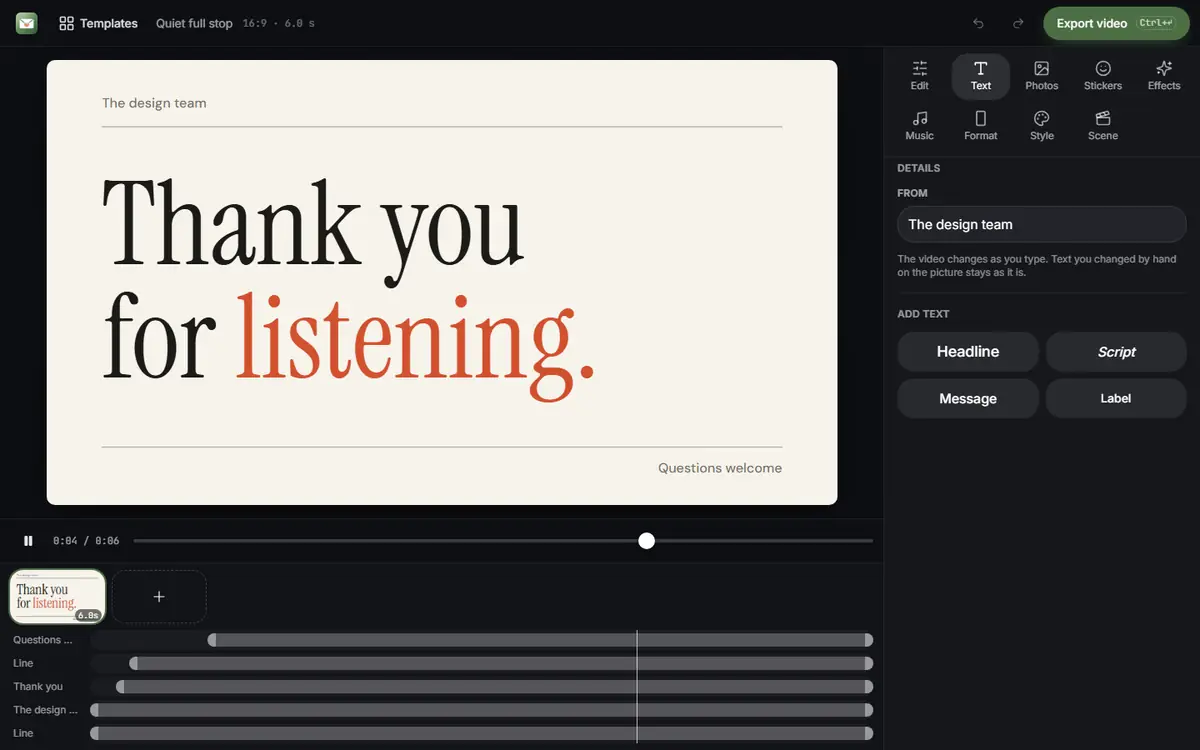
Built-in effects animate one object at a time. For a fuller end slide, make it here: choose a presentation design, keep the Slide 16:9 shape, edit the words in Text, press Export video and choose MP4 or GIF. Then insert it:
Need a different closing line? There are designs for thank you for listening and thank you for your attention as well.
 (enlarge image)
An end slide in the editor: type your sign-off under Text; the slide lasts about six seconds and loops.
 (enlarge image)
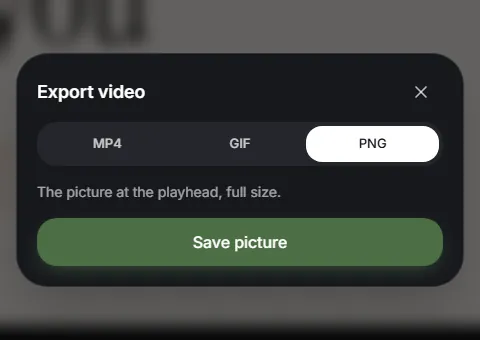
Press Export video and choose MP4, GIF or, for a slide, PNG.
Apply an entrance effect on the Animations tab, then set Start to After Previous or With Previous. It then plays when the slide appears, with no click.
Yes. Insert it like a picture with Insert > Pictures. Animated GIFs play in Slide Show and loop by themselves.
Select the video, open the Playback tab and set Start to Automatically. If it is set to “In Click Sequence” or “When Clicked On”, it waits for a click.
Yes. For a video, tick Loop until Stopped on the Playback tab. A GIF loops on its own.
Yes. The Animations tab is the same idea; videos go in with Insert > Video > Movie from File.
Yes. There is no account and no watermark, and the file is made on your own computer.