





Do I need to install an app to make a thank you video on iPhone?
No. Photos is already on your iPhone, iMovie is a free download from Apple, and thankyou.video runs in Safari with nothing to install.
Guide · with a free thank-you video maker
Three ways that need nothing you have to pay for: a Memory in Photos, a project in iMovie, or a template in Safari with your own words on screen.
Free, no account needed
You can make a thank you video on an iPhone with the Photos app (a Memory movie), with Apple’s free iMovie app, or in Safari with a browser-based template maker such as this one. Photos is quickest but leaves little room for your own message; iMovie gives full control but takes longer; a template puts your words on screen in a few minutes.
With thankyou.video you open the site in Safari, choose a template, add pictures from your photo library, type your thanks and press Export video. The video is made on the phone itself and nothing is uploaded. Afterwards you can send it in Messages, a chat app or AirDrop, or export a short looping thank you GIF to drop into a conversation instead. Need ideas for what to show? See the thank you video ideas.
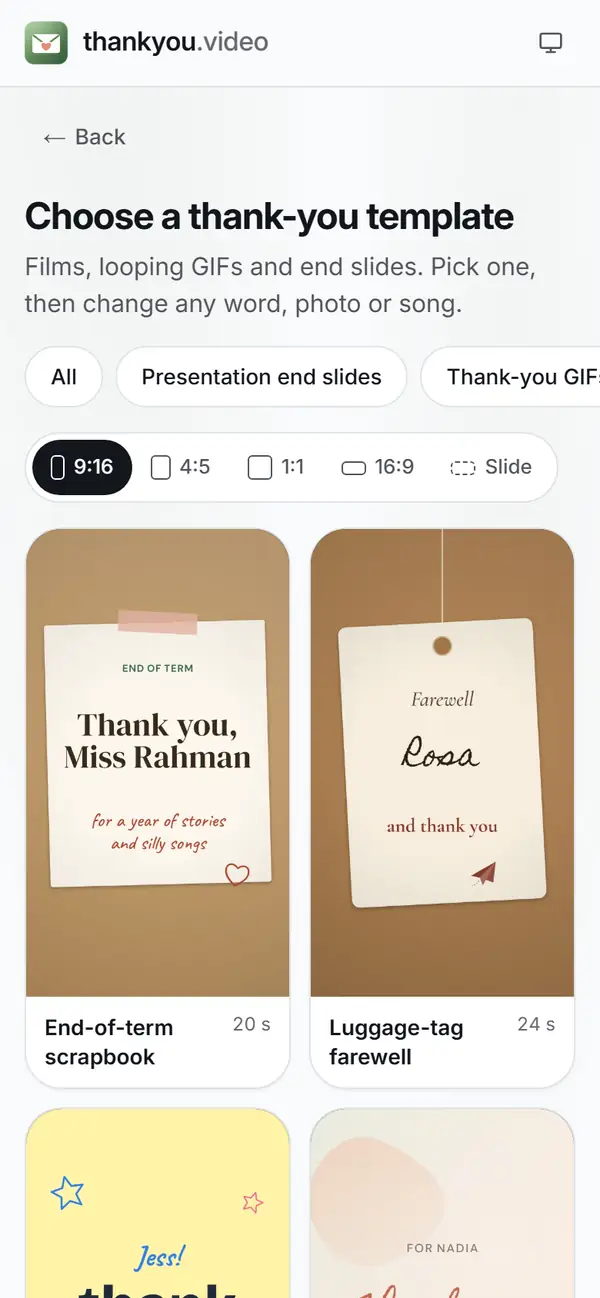
Pick a design under Templates. It starts in Vertical 9:16, which fills the iPhone screen; change Format if it will be watched on a television or laptop.
 (enlarge image)
On a phone the picker opens in Vertical 9:16.
Tap Add photos or clips. iOS opens its picker, where you can select several photos and videos at once from your library.
 (enlarge image)
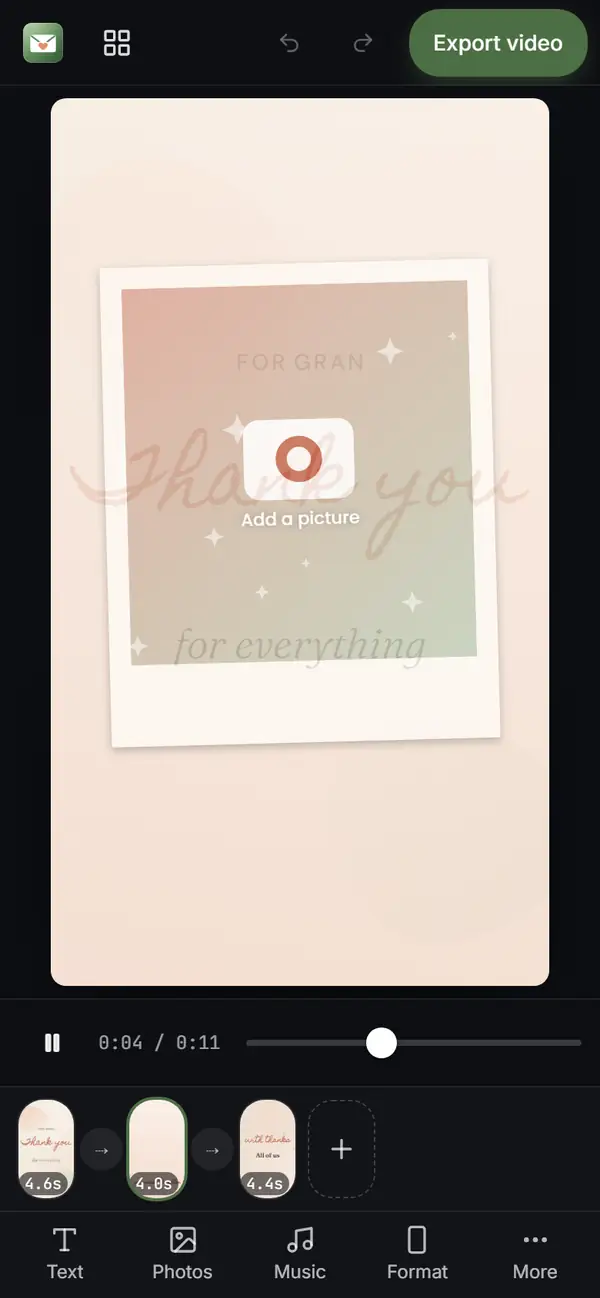
Tap Add a picture or Photos to bring in pictures from your library.
In Text, replace the headline and message with your own words and say who it is from.
 (enlarge image)
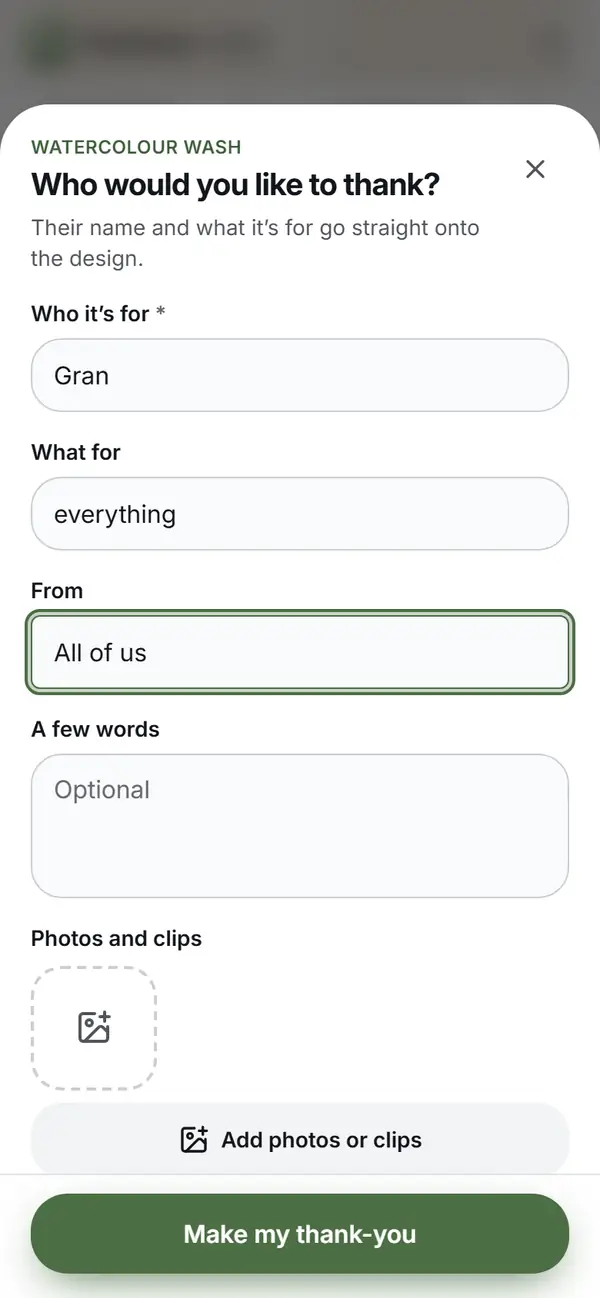
Fill in who it is for and press Make my thank-you.
Under Music, tap Add music and choose an audio file, such as an MP3 or M4A, from the Files app. Tap Play to watch it through.
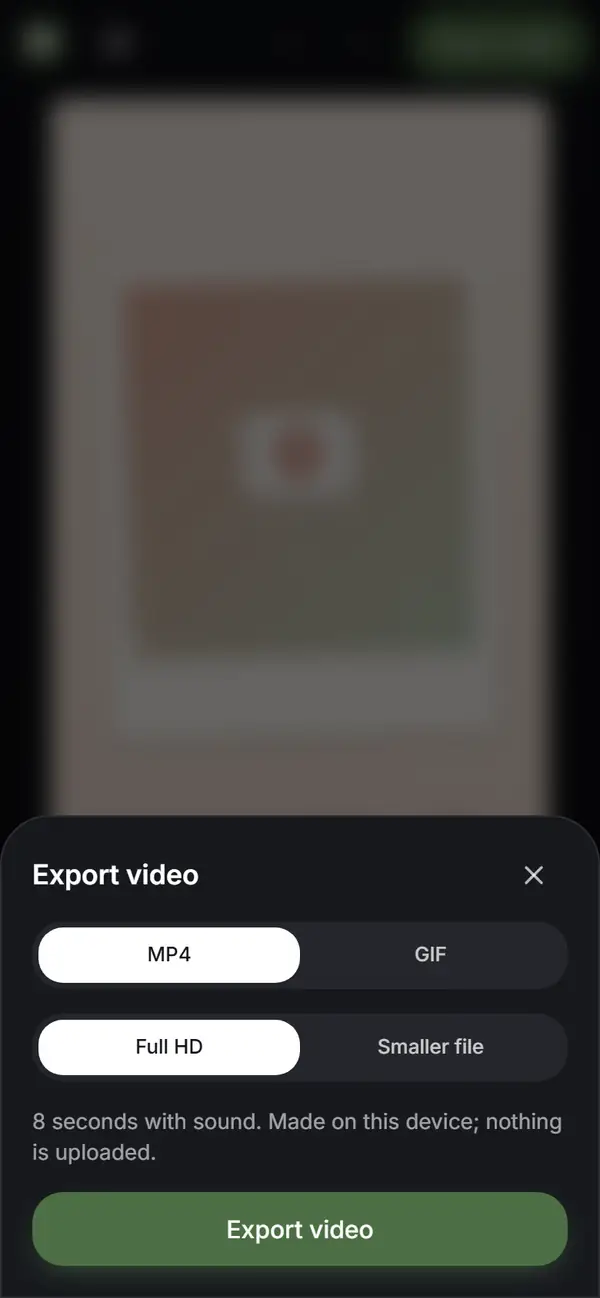
Tap Export video. Then tap Share and choose Save Video to put it in Photos, or Download video to save it to Files, in the Downloads folder.
 (enlarge image)
Press Export video; when it is ready, Download video or Share saves it to your iPhone.
Open one to start; every word, photo and the shape can be changed. All everyday gratitude templates
Soft peach and sage washes, a hand-lettered thank-you and photos in deckled cards
A virtual thank-you card: an envelope arrives on deep teal and opens to a handwritten note
Sage eucalyptus sprigs framing warm ivory and a confident serif: calm, botanical gratitude
Magazine-style black and white with a single red rule and an oversized serif thank-you
Seventies sunburst, chunky rounded letters and stamp-edged photos, like a thank-you postcard from holiday
Butter yellow, a steaming mug and friendly handwriting for small kindnesses from neighbours and friends
Photos can turn an album, a trip or a selection of pictures into a Memory: a short movie with music and transitions chosen for you. You can change the title, the music mood and which photos are in it, then share it or save it as a video. It is quick and polished, but there is little room for a message longer than a title, so it suits “thanks for a lovely weekend” more than a heartfelt note.
Apple’s free iMovie app lets you start a new movie project, lay photos and clips on a timeline, add titles over any shot, pick a soundtrack and save the result to Photos. It gives the most control and works offline, but writing a few lines of text and timing them by hand takes a while on a small screen.
| Way | Best for | Your own words on screen | Time |
|---|---|---|---|
| Photos Memory | A quick montage after a trip or party | A title only | About a minute |
| iMovie | A longer film with clips you edit by hand | Yes, timed by hand | 20 minutes or more |
| A template in Safari | A card-like video with a real message | Yes, already laid out | A few minutes |
For a class or a team, where many people send clips, the group thank you video guide explains how to gather everything on one phone first.
No. Photos is already on your iPhone, iMovie is a free download from Apple, and thankyou.video runs in Safari with nothing to install.
Safari saves downloads to the Files app, in the Downloads folder, unless you have chosen a different place in Settings. Open it there and use the share button to save it to Photos.
Apple Music tracks are protected, so other apps and websites cannot use them in a video. Use an MP3 or M4A file saved in Files, or a track you have the rights to.
No. Safari reads the photos you pick and the video is put together on the iPhone itself. Nothing is sent to us.
Yes, the same steps work in Safari on an iPad, and the bigger screen makes writing the message easier. iMovie and Photos Memories work on iPad too.
Vertical 9:16 if it will be watched on phones, in a chat or a Story. Landscape 16:9 if it will be shown on a television or a classroom screen.